 Cart Rocket
Free Gift With Purchase in One Link
A free gift with purchase is easy to promise in an email and fiddly to deliver. With Shopify's own discounts, the shopper has to find the gift and add it to the cart before the discount shows up. This post covers where the native setup stops, and how to send one link that loads the product and the gift together, with the gift already free.
The native way: Buy X get Y
In Shopify, a free gift with purchase is usually a Buy X get Y discount with the "get" item set to free. Shopify's Help Center says customers must add all items to their cart manually, and the free or discounted "get" item is never added to the cart automatically (Buy X get Y, checked October 14, 2026).
So the shopper has to read your offer, add the product they're buying, go and find the gift, and add that too. If they skip the last step, they check out without the gift.
A few other details from the same page are worth knowing:
- You can cap how often the offer applies in one order with Set the maximum number of uses per order.
- If the free product runs out of stock, it shows as sold out.
- A discount that can't combine with your Buy X get Y discount never applies alongside it.
- On Shopify POS Lite, Buy X get Y discounts work only in the online store checkout.
Can a native link fix it?
A shareable discount link doesn't solve it. It applies one code and opens a page in your store (Managing discount codes), and Shopify's description of it doesn't include adding products to the cart. The shopper still has to add both items.
A cart permalink gets closer. It adds the variants you list and can pass a code in the discount parameter (Create cart permalinks), so you can list both the product and the gift and pass your Buy X get Y code:
https://your-store.myshopify.com/cart/PRODUCT_ID:1,GIFT_ID:1?discount=FREEGIFTTest it on your store before you send it. The code still has to be active, meet its conditions and combine with anything else in the cart, and a code containing a comma can't be passed in that parameter. Once the link is out, changing the gift means building and sending a new URL. If the gift doesn't show as free when you test, Why your Shopify discount link isn't applying lists the usual causes.
The Cart Rocket way: the Free gift template
Cart Rocket has a starter template for this. According to the Starter templates docs, Free gift fills in UTMs and the order tag free-gift. It doesn't set a discount, because you choose the gift.
- Click Create cart and choose Free gift under How do you want to start? The product picker opens.
- Add the product the shopper is buying and the gift product, with the variants and quantities you want.
- In Discounts, give the gift product a 100% line-item discount so it's free. Set Max discounted quantity for this item to 1 if only one unit should be free.
- In General, give the cart a Title you'll recognise later in Analytics.
- Save and copy the link from Cart link.
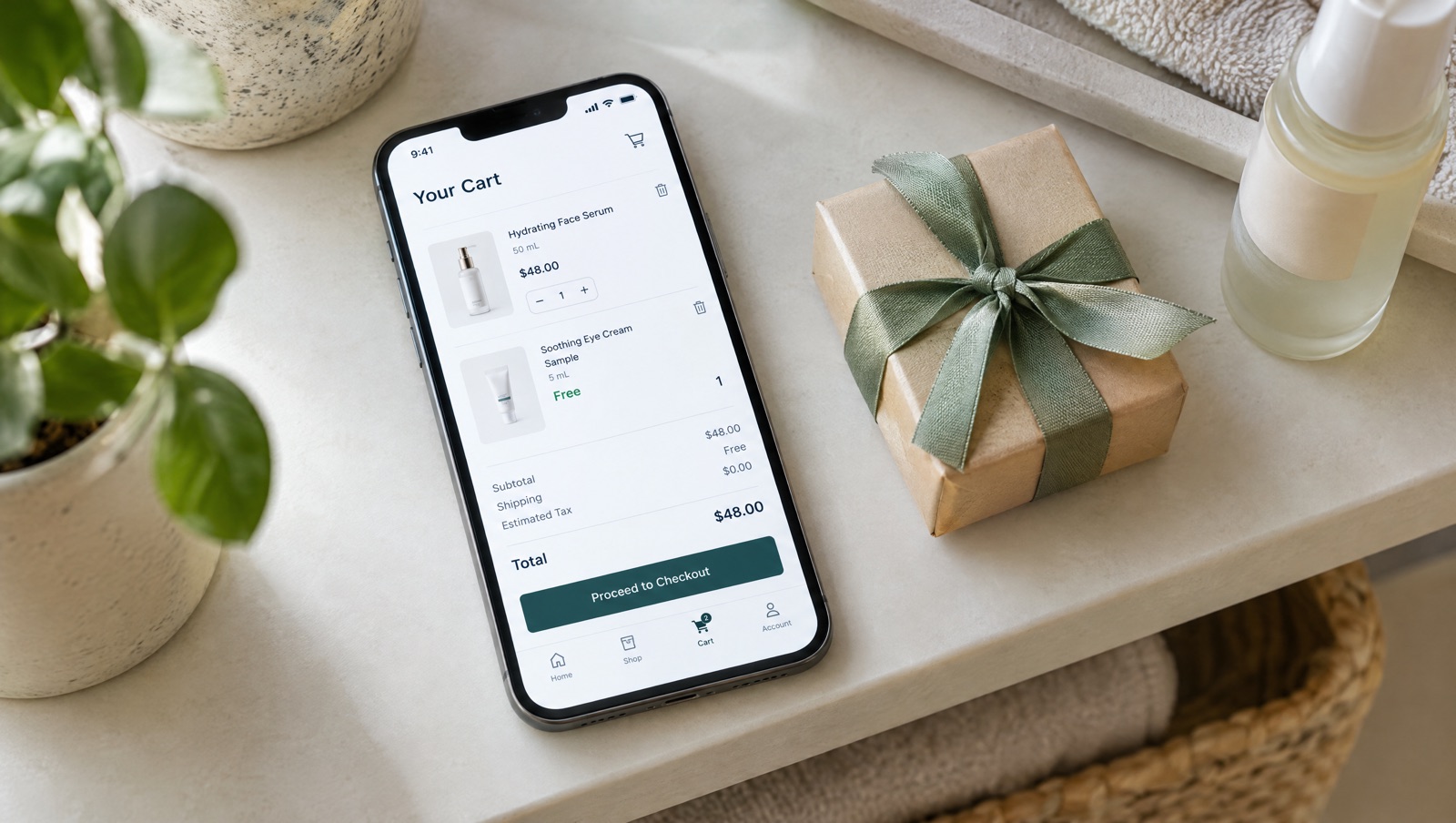
The shopper opens one link and the cart already holds the product and the gift, with the gift at zero and no code to type.
Keep the gift attached to the purchase
A 100% item discount makes the gift free whatever else is in the cart, so a shopper could remove the paid product and check out with only the gift. These settings close that gap.
Lock offer cart
Under Advanced, open Lock offer cart and tick Lock this cart. A locked link can only be paid for with exactly the products and quantities you built. If a shopper removes the paid product, swaps a variant or changes a quantity, checkout shows a message and they can't pay until they undo the change or open the link again. Shopify runs the check during checkout, including express checkouts such as Shop Pay, PayPal, Google Pay and Apple Pay. Two limits: carts with bundles can't be locked, and the cart page itself isn't locked, so a changed cart can be edited but not paid for. See Lock offer cart.
Purchase limits
To give the gift to each customer once, set Max purchases per customer under Advanced, then Purchase limits. It only works when the customer is logged in. If you have a fixed number of gifts, set Max purchases overall too. When the link reaches its limit, shoppers go to the product or home page with a short notice. See Purchase limits.
Active dates
Most gift offers run for a set period. Set a start and end under Active dates, in UTC, and the link stops working when the offer ends.
A few extras
Let shoppers pick the gift's size or colour
If the gift comes in variants, turn on the options page before checkout and tick Let shoppers choose size/colour on the gift. The discount follows the variant the shopper picks. With a locked cart, the lock follows the shopper's choice.
Show the gift before checkout
Shoppers go straight to checkout by default. The Checkout options docs suggest Redirect to cart for gift sets, so the shopper sees the free line in the cart first.
Add free shipping
A shipping discount can go on the same link as the gift, with an optional minimum subtotal or number of items. Combine a product discount and free shipping in one link covers how the discounts stack.
See what the gift drove
Orders through the link carry the free-gift tag, which you can filter on in your Shopify orders. Analytics shows orders and revenue per cart link. If you run separate gift links for email and SMS, change the UTMs on each so they show separately under Campaigns.
Gifting to creators
The same setup works with only gift products in the cart. The Creator links docs describe it: give each gift product a 100% item discount and send the creator the link so they can enter a shipping address at checkout. For every value the template fills in, see the five starter templates.
Try it on your store
Cart Rocket builds pre-loaded cart links for Shopify with automatic discounts, bundles, an options page with a countdown, order tags, UTM tracking and QR codes. Basic is $9/month for one cart link with every feature; Pro is $15/month for unlimited links. Both start with a 7-day free trial.
Install Cart Rocket →